Mark up a PDF
Add highlights, drawings, notes and stamps without changing the original file.
Steps
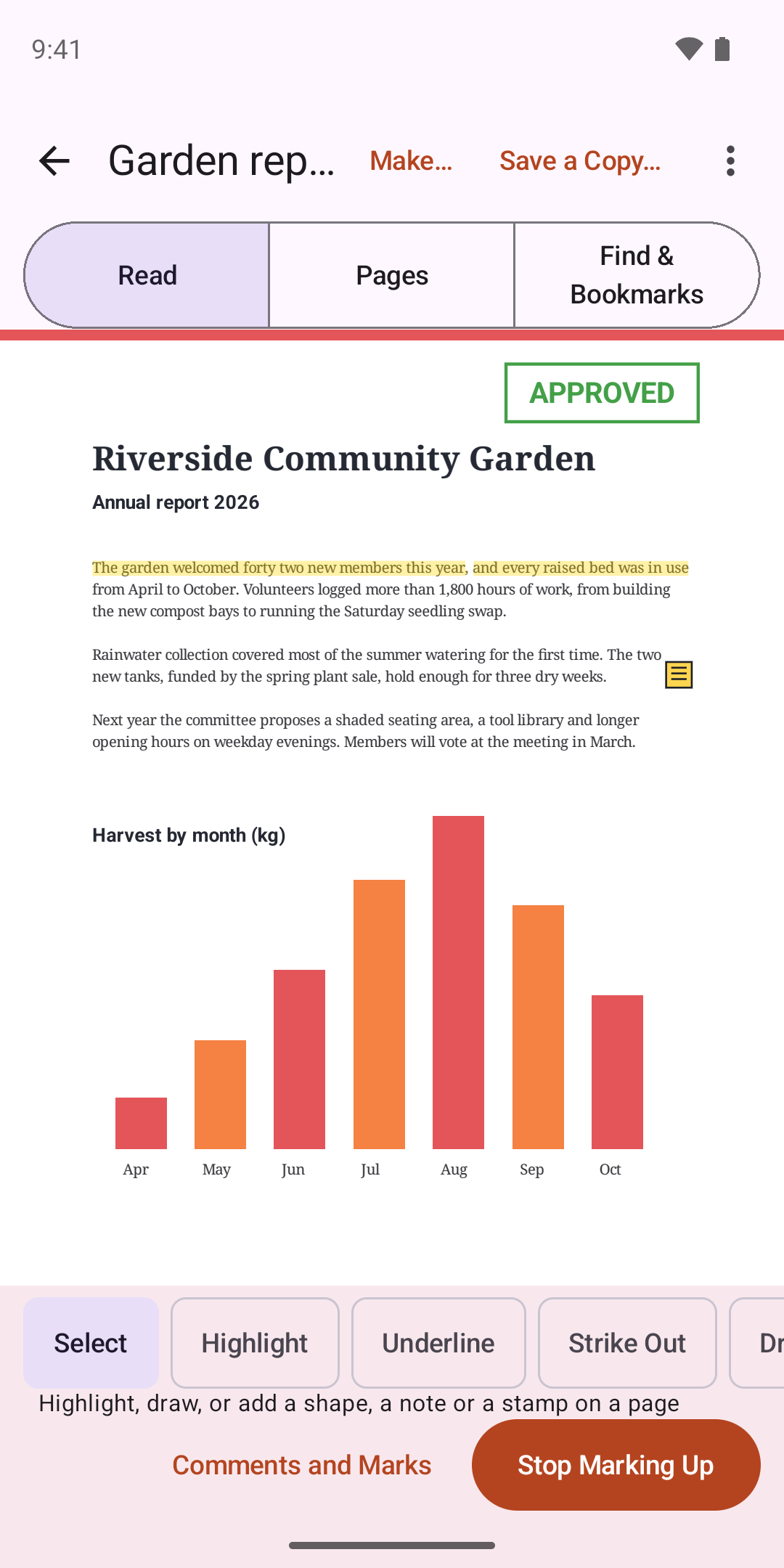
Open the PDF and choose Mark Up.
Choose the kind of mark you want, such as a highlight, drawing, note or stamp.
Select text or place the mark on the page.
Adjust the available colour, note or drawing controls.
Review the page and remove or undo any mark you do not want.
Choose Save a Copy, then choose a name and location. The marked document is saved as a new PDF and the original stays unchanged.
Where will my marks be saved?
Choose Save a Copy and a location, then reopen that new PDF to check the marked page. The original document stays unchanged.
How can I correct a mark before saving?
Review the page in Mark Up and use the available remove or undo control for the mark you do not want. Check the page again before saving a new copy.
Ready to try this task? Get ExplorePDF and choose the store for your device.
Related help
Still stuck? Contact Support.