Print a PDF as a booklet
Create pages in the order needed for double sided printing, folding and stapling.
Steps
Open the PDF and choose Print as a Booklet.
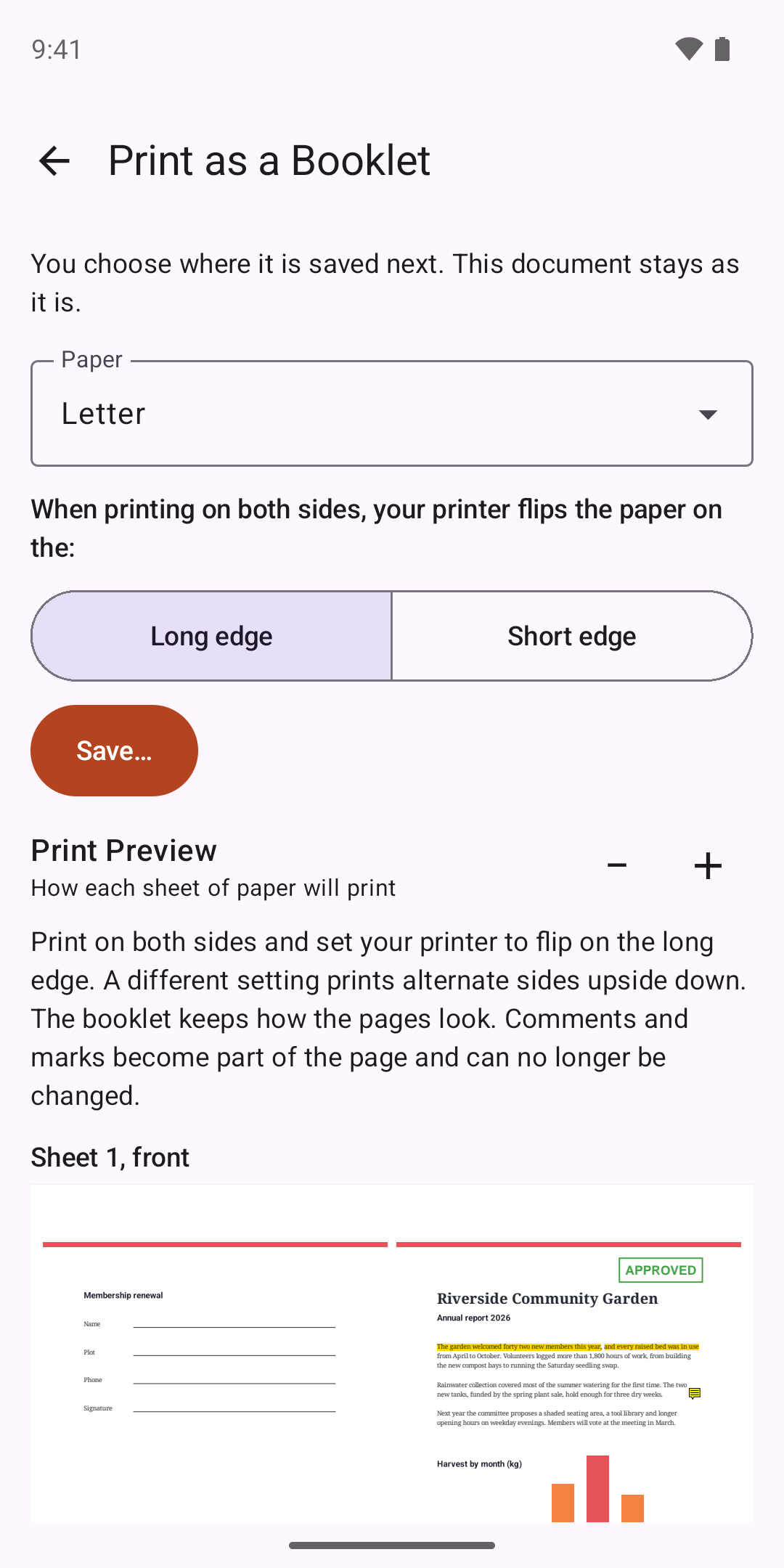
Choose the sheet size and orientation for the paper you will use.
Choose the binding edge that matches the way the folded booklet will open.
For a longer document, choose how many sheets belong in each folded section.
Review every sheet in Print Preview and read the printer binding instruction shown by ExplorePDF.
Make the booklet copy, then choose a name and location. The arranged result is saved there as a new PDF and the original stays unchanged.
Print the saved PDF on both sides in a compatible PDF reader, using the same binding edge shown in ExplorePDF. Android also offers system printing.
Example: an eight-page club programme
An eight-page booklet uses two sheets printed on both sides. Each sheet holds four booklet pages: two on the front and two on the back. For a left-bound booklet read from left to right, the outside sheet pairs page 8 with page 1 on one side, then page 2 with page 7 on the other. The inside sheet pairs 6 with 3, then 4 with 5.
This is a fictional printing example. Fold a single test copy and check the cover, centre spread and page order before printing a larger batch.
Printing from a phone or tablet
Make and save the booklet PDF on your iPhone, iPad or Android device first. The saved file contains the arranged pages, so you can move it to a computer connected to your printer without arranging it again. Android also offers system printing.
Keep the output at one PDF page per side in the printer dialog. Choosing booklet mode or several pages per sheet there would arrange the already prepared pages a second time. Match the paper size to the sheet size you chose in ExplorePDF.
Check the flip edge with one sheet
Use the binding instruction shown in ExplorePDF as your starting point, then check your printer's two-sided settings. Printer drivers use different wording for the flip edge. If the back is upside down, change that setting and print another test sheet before printing the whole booklet.
A printer without automatic two-sided printing needs a manual second pass. Follow its own paper-loading instructions and test one sheet, since the correct feed direction depends on the printer.
How many sheets does a booklet need?
Each sheet printed on both sides holds four booklet pages. Divide the page count by four and round up: an eight-page booklet needs two sheets, while a ten-page booklet needs three sheets with space for two blank pages. Review the preview before saving.
Should I turn on booklet printing in the printer dialog too?
No. The saved booklet PDF already has its pages arranged. Print one PDF page per side, using the paper size and binding instruction chosen for the booklet.
Can I make the booklet on a phone and print it later?
Yes. Make and save the booklet PDF on iPhone, iPad or Android, then print that file from a compatible reader or transfer it to the computer connected to your printer.
Ready to try this task? Get ExplorePDF and choose the store for your device.
Related help
Still stuck? Contact Support.